Role Management
Role Management is where you view, create, and edit roles, and configure which permissions each role grants across the platform's modules.
Role List
The Role List shows every role in the system.
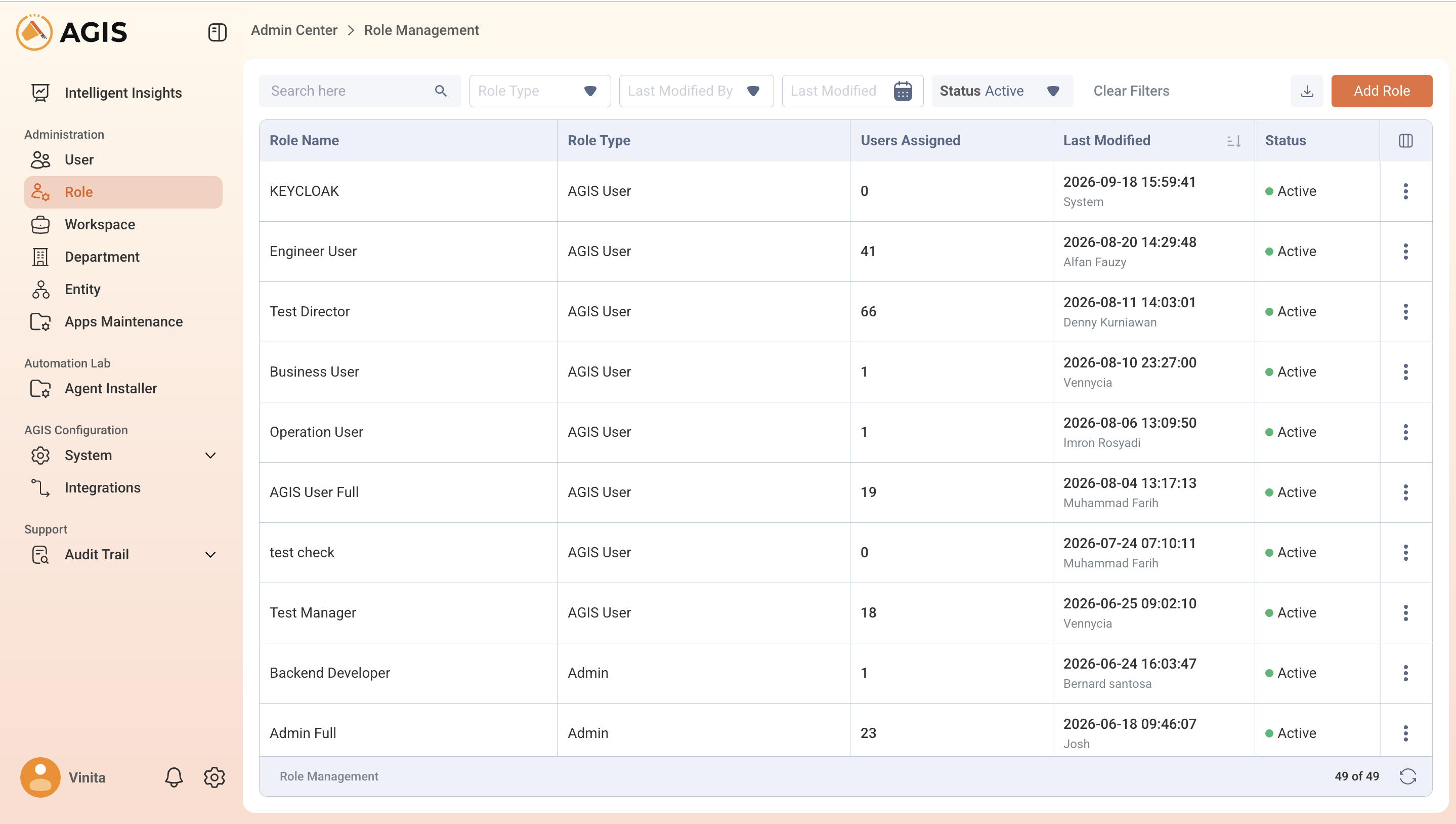
At the top of the page you can:
- Search here — search roles by name.
- Role Type — filter by role type.
- Last Modified By — filter by who last modified the role.
- Last Modified — filter by a date/date range.
- Status — filter by status, e.g.
Active. - Clear Filters — reset all applied filters.
- Download (the download icon) — download the current role list as a CSV file.
- Add Role — open the form to create a new role.
The table itself shows:
| Column | Description |
|---|---|
| Role Name | The name of the role |
| Role Type | The type of role |
| Users Assigned | Number of users currently assigned this role |
| Last Modified | Date/time of the last change, and who made it |
| Status | Active or inactive |
Add Role
Click Add Role on the Role List page to open the Add New Role form.

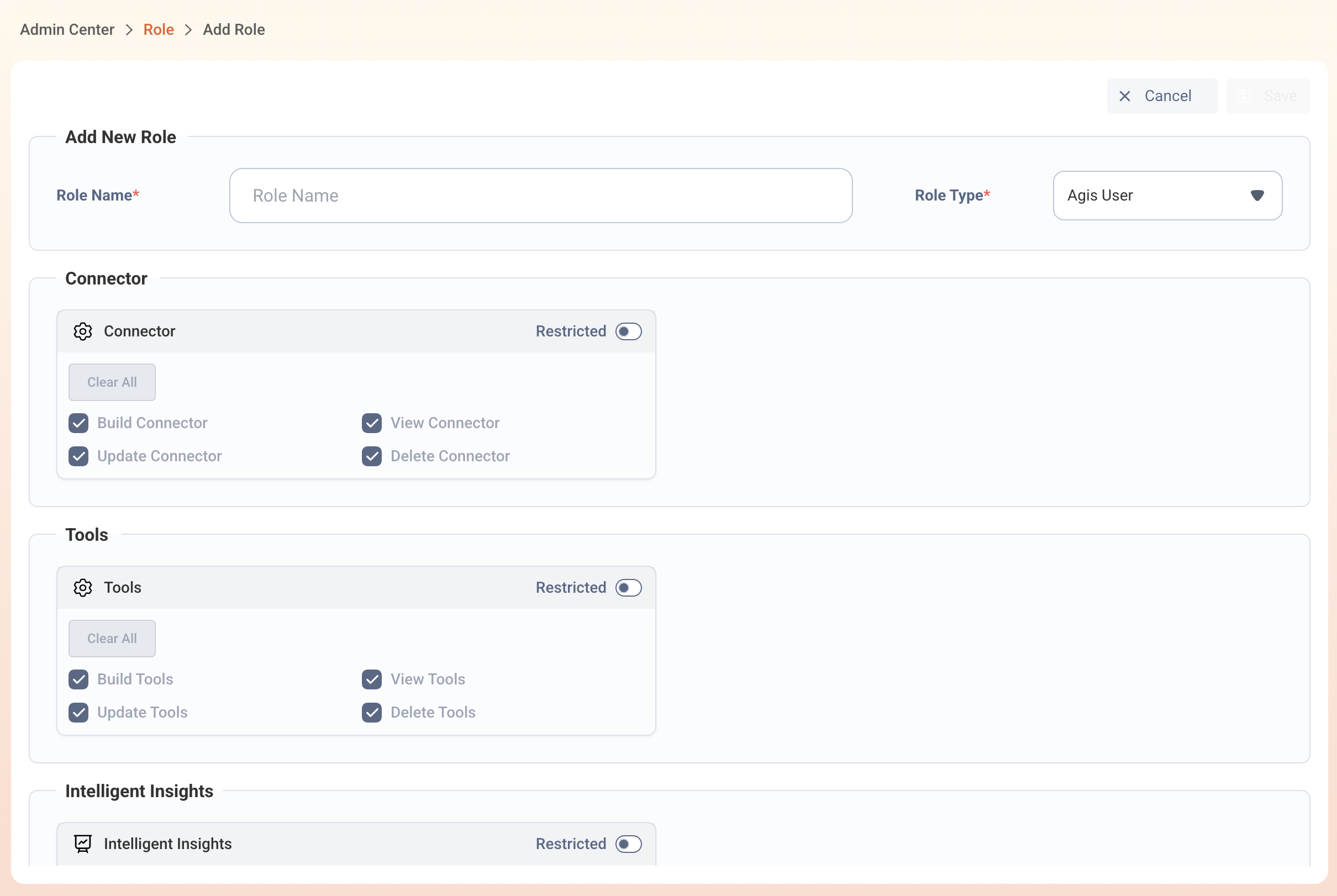
- Enter a Role Name (required).
- Select a Role Type (required), e.g.
Agis User. - Configure permissions for each module. Permissions are grouped into cards by module (e.g. Connector, Tools, Intelligent Insights). Each card has:
- A Restricted toggle for the module as a whole.
- Individual permission checkboxes specific to that module, e.g.
View,Build,Update,Delete. - A Clear All / Select All button to quickly check or uncheck every permission in that card.
- Click Save to create the role, or Cancel to discard it.
Row Actions
Click the ⋮ icon at the end of a row to open the row actions menu:
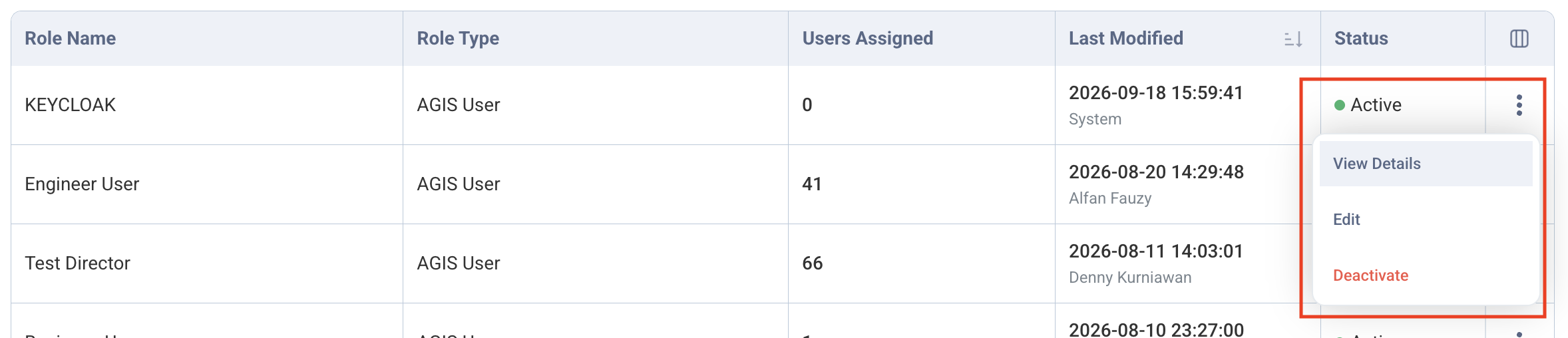
| Option | Description |
|---|---|
| View Details | Open a read-only view of the role's permissions |
| Edit | Open the role in edit mode to change its name, status, or permissions |
| Deactivate | Deactivate the role |
View Role Details
Selecting View Details from the row actions opens a read-only summary of the role.
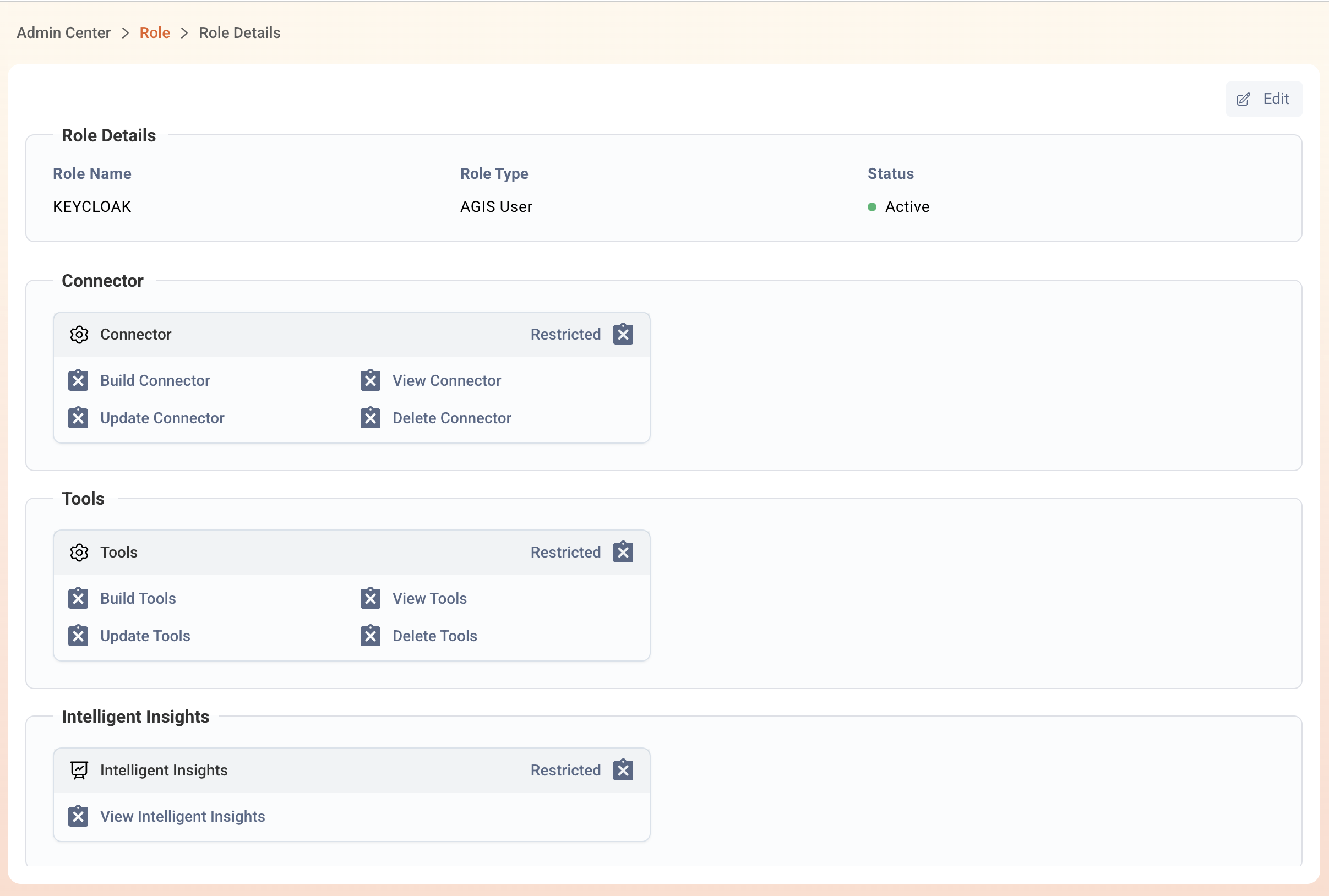
- Role Details at the top shows the Role Name, Role Type, and Status.
- Below that, every module card is shown the same way as in the Add Role form, but permissions are displayed as read-only icons rather than editable checkboxes — you cannot change anything from this view.
- Click Edit in the top-right corner to switch to edit mode.
Edit Role
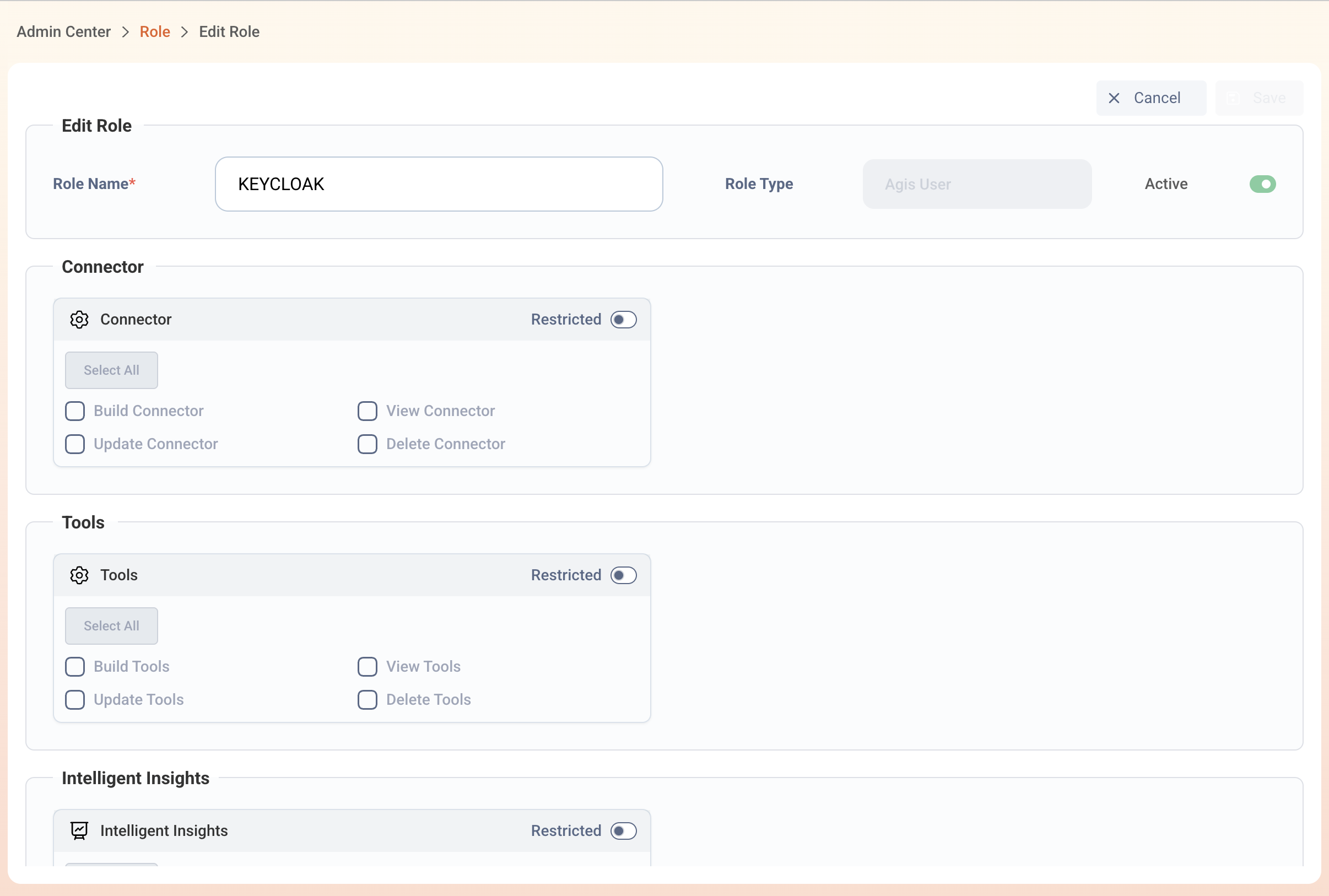
Selecting Edit (either from the Row Actions or from the View Details page) opens the role in an editable form.
-
Update the Role Name if needed.
-
Toggle Active on or off to change the role's status.
-
Check or uncheck permissions in each module card, or use Select All / Clear All per card.
infoRole Type cannot be changed once the role has been created.
-
Click Save to apply the changes, or Cancel to discard them.
Deactivate a Role
Selecting Deactivate from the row actions deactivates the role. Once deactivated, the role's status changes to inactive and it no longer appears when the Status filter is set to Active.
